
Handle privacy issues or threats · Aesthetics clinic owners and managers
A Google Review Includes Before-and-After Photos. What Can an Aesthetics Clinic Report?
Check who or what appears in the photograph, then find where Google displays it. The written review and the photo can raise different issues, so record them as separate items before reporting either one.
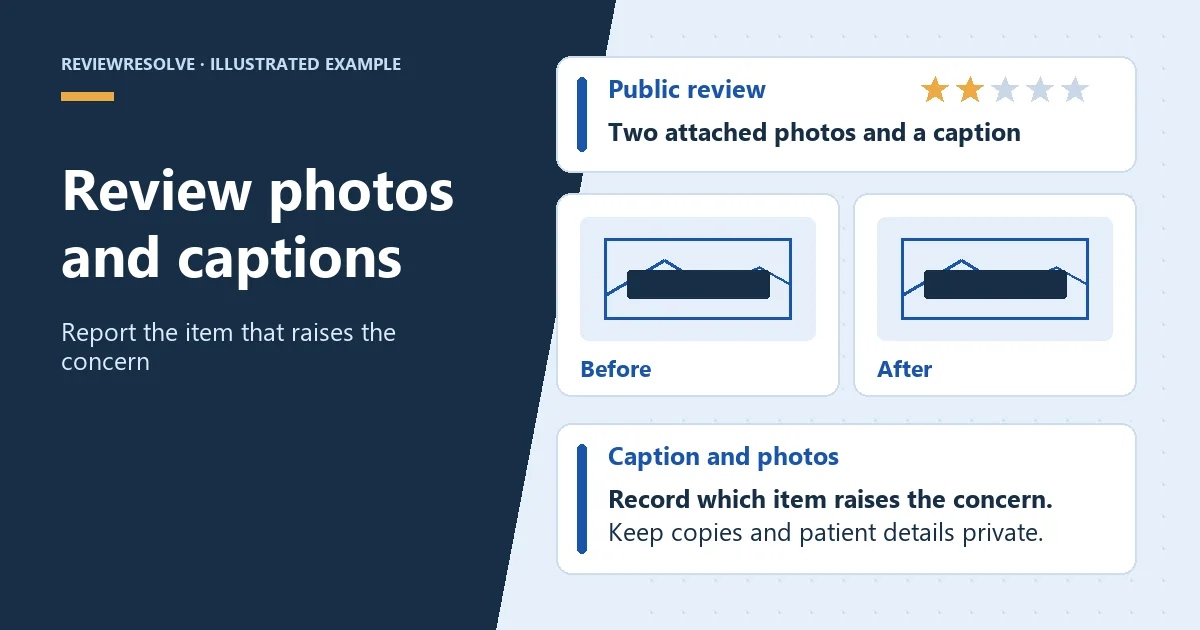
Check the image, the written review and who uploaded each one
Open the review on the clinic’s listing. Note whether the picture sits in the review, opens as individually selectable media, or was uploaded by the clinic itself. If the clinic uploaded the image, check its own upload controls and internal records. For customer-uploaded media, open the specific item when possible and use Google’s photo report option. Record any issue in the text separately and use the review reporting route for that issue.
Look for facts that can be stated without redistributing the picture. For example, a second person may be visible in a reflection, a treatment document may be readable at the edge of a frame, or the image may be from a different branch. A customer might also share a photo of themself and describe their own experience. The mere presence of a before-and-after comparison does not establish a violation. Check the exact identifying detail or other relevant rule before choosing a report reason.
Fictional example with three different outcomes
An aesthetics clinic sees a two-star review about delays. The review has two photographs. The first shows the author’s own face, as far as the clinic can tell. In the second, the corner of a document shows another person's details. The manager flags the document using a brief locator. A description of the exact image and area is easier for a moderator to check.
| Item | What to check | Route in this example |
|---|---|---|
| Author’s own comparison photo | Is another person, private record or separate violation visible? | No report on the available facts |
| Second image with the document | Exactly where the private information can be seen | Google photo report, if the item can be selected |
| Review text about the delay | Does a separate passage raise a policy issue? | Clinic feedback process |
Send the smallest useful report
For a selectable customer photo, Google’s Business Profile instructions point to the Photos area, the individual image and the Report a problem control. On the Maps app the control appears under the photo’s menu. Google provides privacy and relevance among the example reporting reasons. When the photo cannot be selected separately, keep the original review reference and use the reporting options available for that item. State which picture and area caused concern, so the person reviewing the report can locate it.
Keep an internal note of the listing, capture time, first or second image, location of the issue and action taken. Keep patient documents and identifiable copies in the clinic’s approved internal process. Sending multiple reports for the same item can delay photographic review, according to Google.
Use Google’s customer photo and video reporting instructions
When an assessment can help
If the caption also identifies another person or makes claims about a service offered at a different clinic, a text review may warrant its own assessment. Start with the public business listing, a short description of what concerns you and the status of any Google report. Leave out clinical images, treatment records and identifiable details. An assessment can help identify which part of a case needs attention and whether the review itself has a plausible reporting basis.